Google says “Access blocked” or OpenFit is not verified
The Google account you selected is not enabled on this Android beta client, or you selected a different account from the one we enabled. Reply with the exact Google email linked to your Fitbit/Google Health data. Do not send a password. We will verify the tester list before spending another test-user slot.
The Firebase invitation is missing, expired, or opens the wrong account
- Search every inbox for “invited to test OpenFit for Android.”
- Open the link on the test phone and accept with the same Google account that received it.
- Sign into Firebase App Tester with that same account.
- If Firebase says the invitation expired or you are not a tester, email us from the invited address for a fresh enrollment. Do not keep switching accounts.
Android will not install or update OpenFit
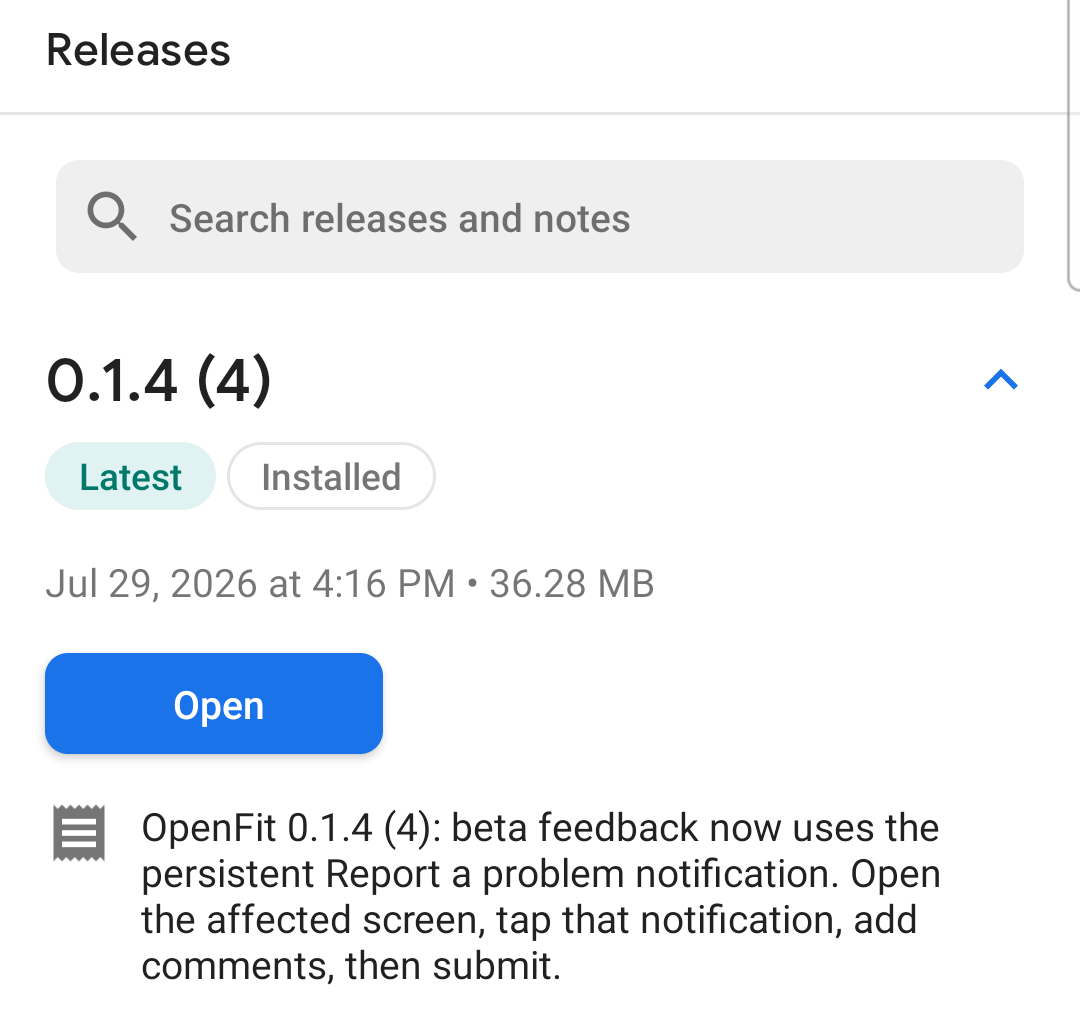
Open Firebase App Tester, select the newest OpenFit release, and allow installs from Firebase App Tester when Android prompts. Install over the existing app. If OpenFit Settings still shows an older version than App Tester, send both version numbers to support. Do not uninstall first unless support asks you to.
There is no Report a Bug button
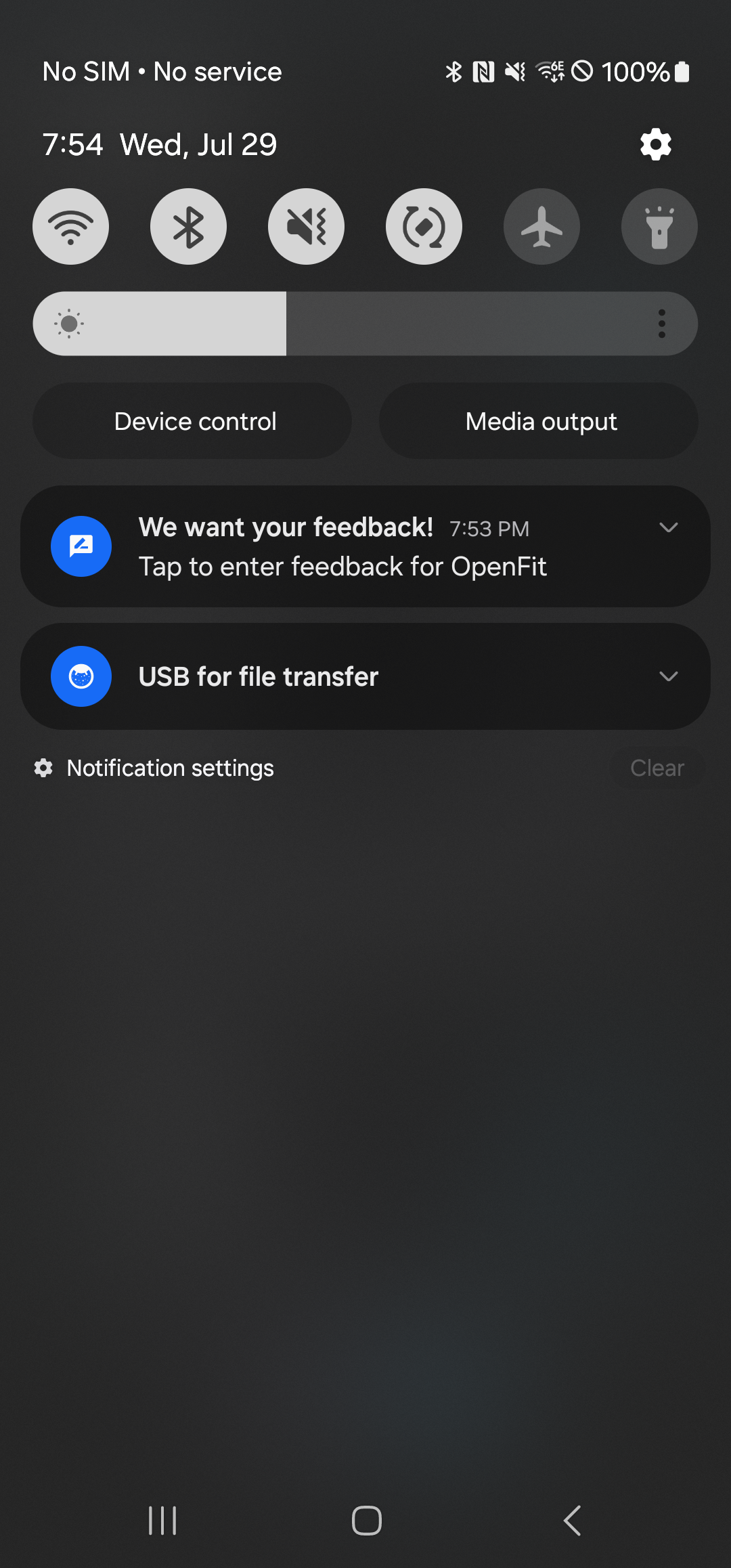
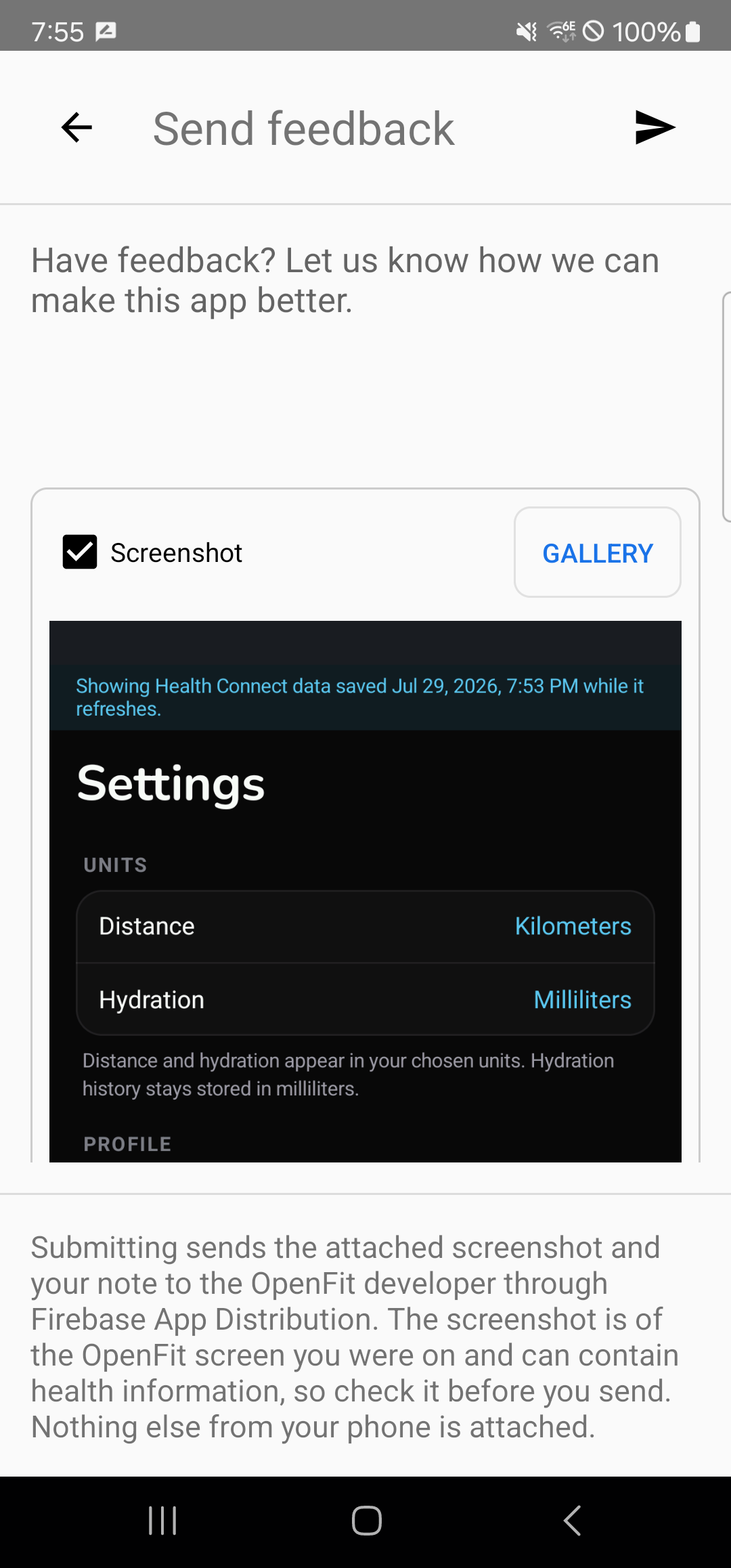
That is expected. Keep OpenFit open on the affected screen, pull down Android’s notification shade, and tap “We want your feedback!” If you never allowed the beta notification, open Android Settings → Apps → OpenFit → Notifications, enable notifications, then close and reopen OpenFit.
Firebase says “Release not found” or asks for another account
- Open Firebase App Tester and confirm you are signed in with the account used to accept the invitation.
- Confirm App Tester shows the newest OpenFit release.
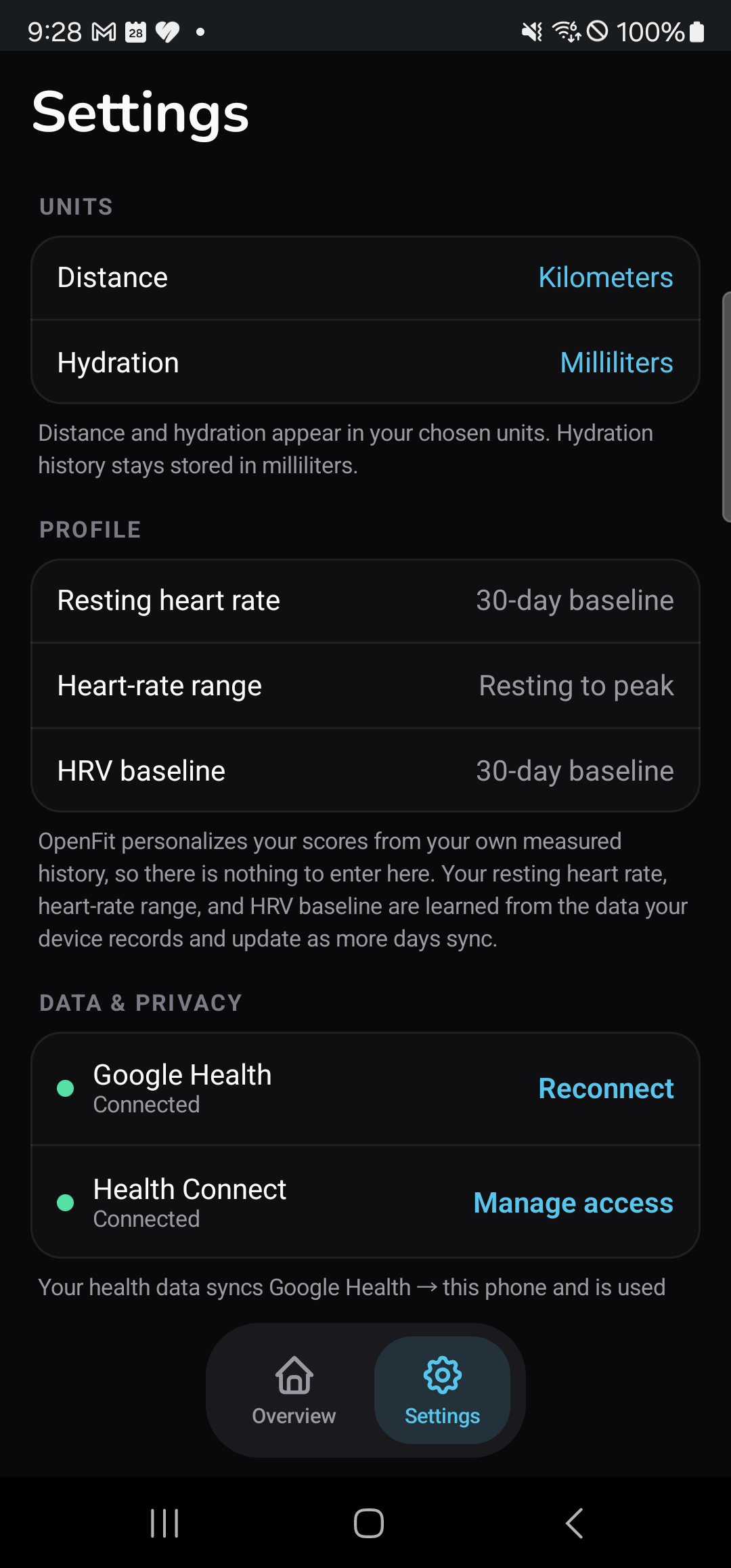
- Compare that release with OpenFit → Settings → Legal → Version and update if they differ.
- Return to OpenFit, keep it in the foreground, and try the feedback notification once more.
- If it still fails, email support with the exact error, tester email, OpenFit version, phone model, and time. Do not send a password or invitation link.
The feedback form will not send
Stay online and retry once. If the screenshot is sensitive, uncheck it before retrying. If the form still fails, email the note to support with the OpenFit version and exact error; attach a cropped screenshot only if you choose.
OpenFit says older Google Health history is still syncing
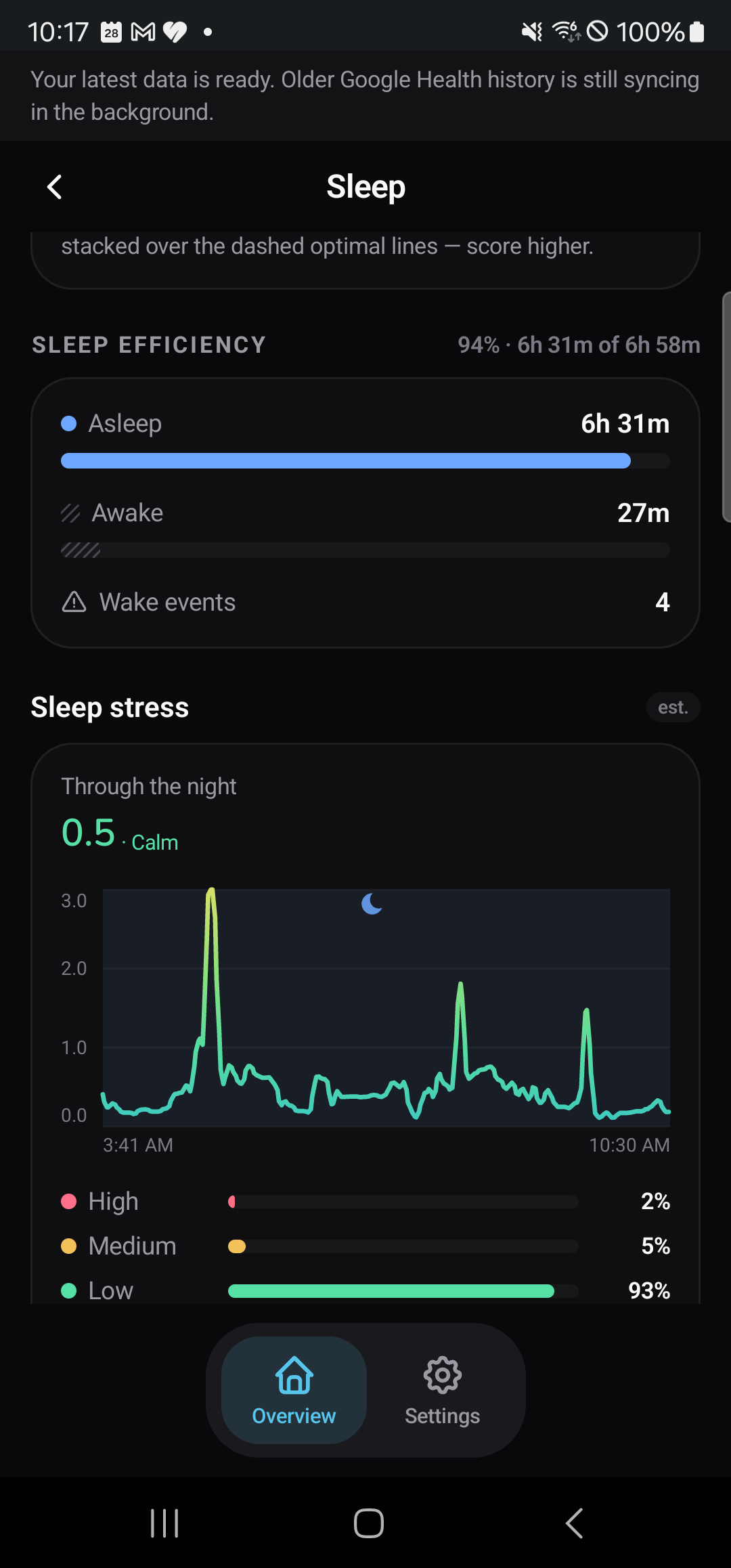
This is an informational state, not a connection failure. Your latest dashboard is ready while OpenFit resumes older trend and baseline history in small background passes. Leave the phone on unmetered Wi-Fi with normal battery level. Do not reconnect or reinstall. The notice disappears after supported history reaches the backfill horizon.
Google Health says Connected, but the dashboard is empty or stale
- Confirm Google Health/Fitbit itself shows recent sleep, heart rate, and steps for that account.
- Keep OpenFit in the foreground on a stable connection for the first pass.
- Close and reopen OpenFit once to retry a safe refresh.
- In Settings, use Reconnect only if the row says Needs reconnect or Connection failed.
OpenFit asks you to reconnect later
This private Google testing setup can require renewed consent. Go to Settings → Data & Privacy → Reconnect, select the same Google Health account, and approve access again. Your on-device history should remain in place.
You see “No recent Health Connect data”
You are on the fallback path and Health Connect has no useful recent records. Open Google Health → profile picture → Partner apps → Sync your favorite health apps, finish its Health Connect disclosure, and allow the categories you want shared. Then return to OpenFit and try again. Direct Google Health remains the preferred source.
A metric, SpO₂ value, or sleep stress is missing
First check whether Google Health has that value for the same date. OpenFit shows missing data as unavailable rather than inventing a number. Sleep stress requires at least 70% gap-clamped overnight heart-rate coverage plus HRV context; a loose band, charging gap, or sparse night can make it unavailable. If history is still syncing, leave Wi-Fi available and check that night again later.
The app looks connected, but you are not sure the values are yours
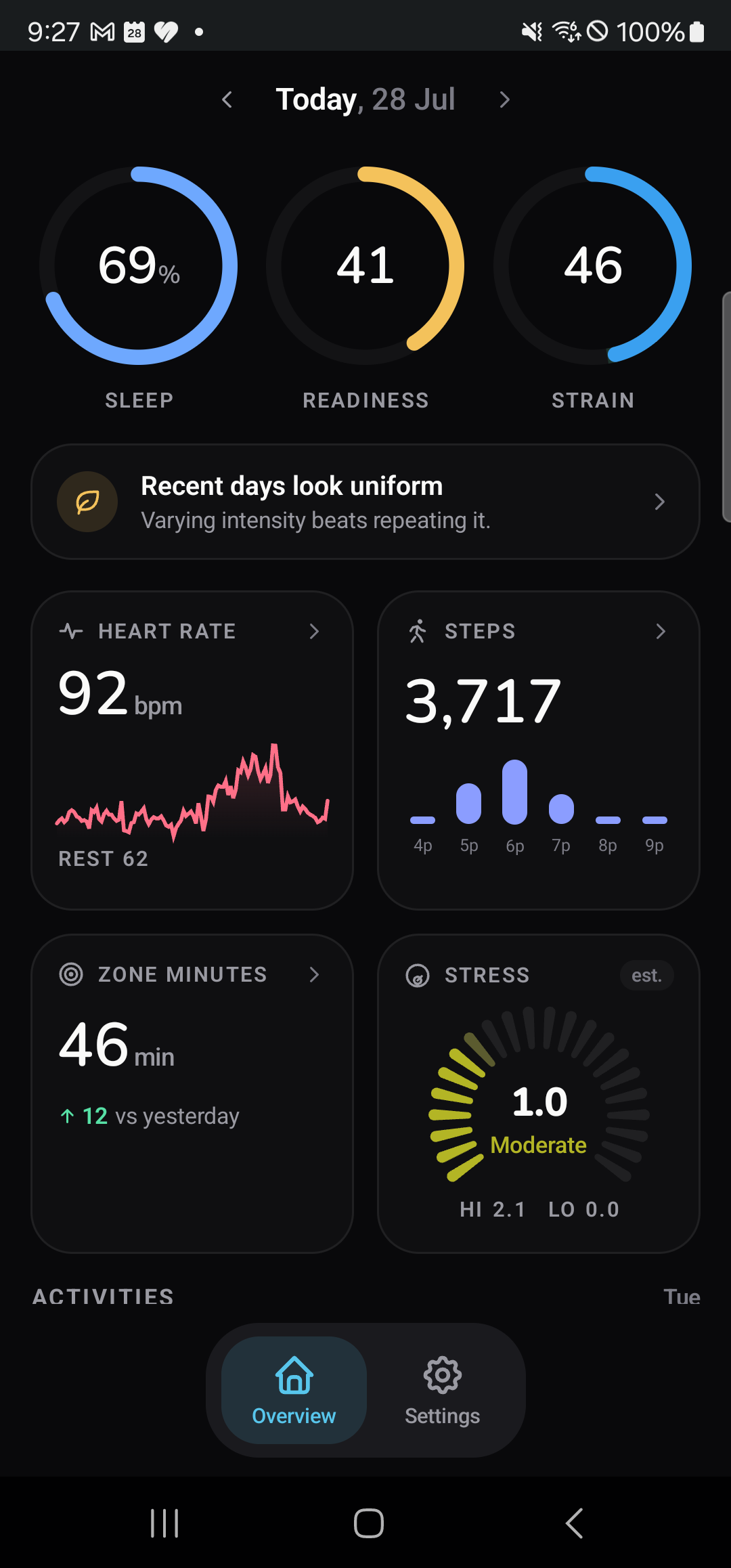
Open Settings and confirm Google Health says Connected. Return to Overview, compare today’s steps and recent sleep time with Google Health, and check that no “Sample data” banner is present. If they do not agree after a refresh, send both screenshots to support.